Bring Your Own AI Key for Sales Prospecting
Bring your own AI key from OpenAI, Claude, Gemini and more. Your provider bills the AI usage directly, and no credits are used. See who pays, limits and usage by person.
Maybe your company already pays for an AI provider. Maybe it has a preferred model, or a rule that work goes through its own account. Or maybe you just want to see the bill yourself instead of buying credits.
Either way, you can bring your own AI key to TotalGTM. Use your own OpenAI, Claude or Gemini key, or one from another provider. Set it for yourself, or set it once for your whole organization.
Who pays for what
Every piece of AI work in TotalGTM, like a deep dive, an opportunity landscape, an outreach email or a sequence, runs on one of three things, in this order:
- Your own key, if you’ve set one on your profile.
- Your organization’s model, if an admin has set one.
- TotalGTM’s models, paid from your organization’s credits.
Your own key wins over the organization’s. AI work on either one is billed by the provider, to that account, at your rates. It draws no TotalGTM credits. Your TotalGTM plan is separate and still applies; your own key only changes who pays for the AI.
AI sales tool pricing, in plain terms
Without a key of your own or your organization’s, work runs on TotalGTM’s models and draws from your organization’s credits. Credits are simply what it costs to use TotalGTM’s models, charged by how much the work uses.
Credits apply only to TotalGTM’s models. Bring your own AI key and you pay your provider for the AI directly, alongside your TotalGTM plan.
Bring your own AI key for yourself
Open User Profile and find LLM Provider Settings:
- Pick a Provider. The choices are OpenAI, Google Gemini, Anthropic Claude, xAI (Grok), Together.ai, Ollama, or a Custom Endpoint where you enter the address yourself.
- Paste your API Key.
- Pick a Model. The list comes from the provider, so new models show up there as they’re released. Leave it on Newest available and you get the provider’s newest model.
- Click Save LLM Settings.
Your key is saved and shown masked from then on. Remove mine and use the default goes back to your organization’s model or TotalGTM’s.
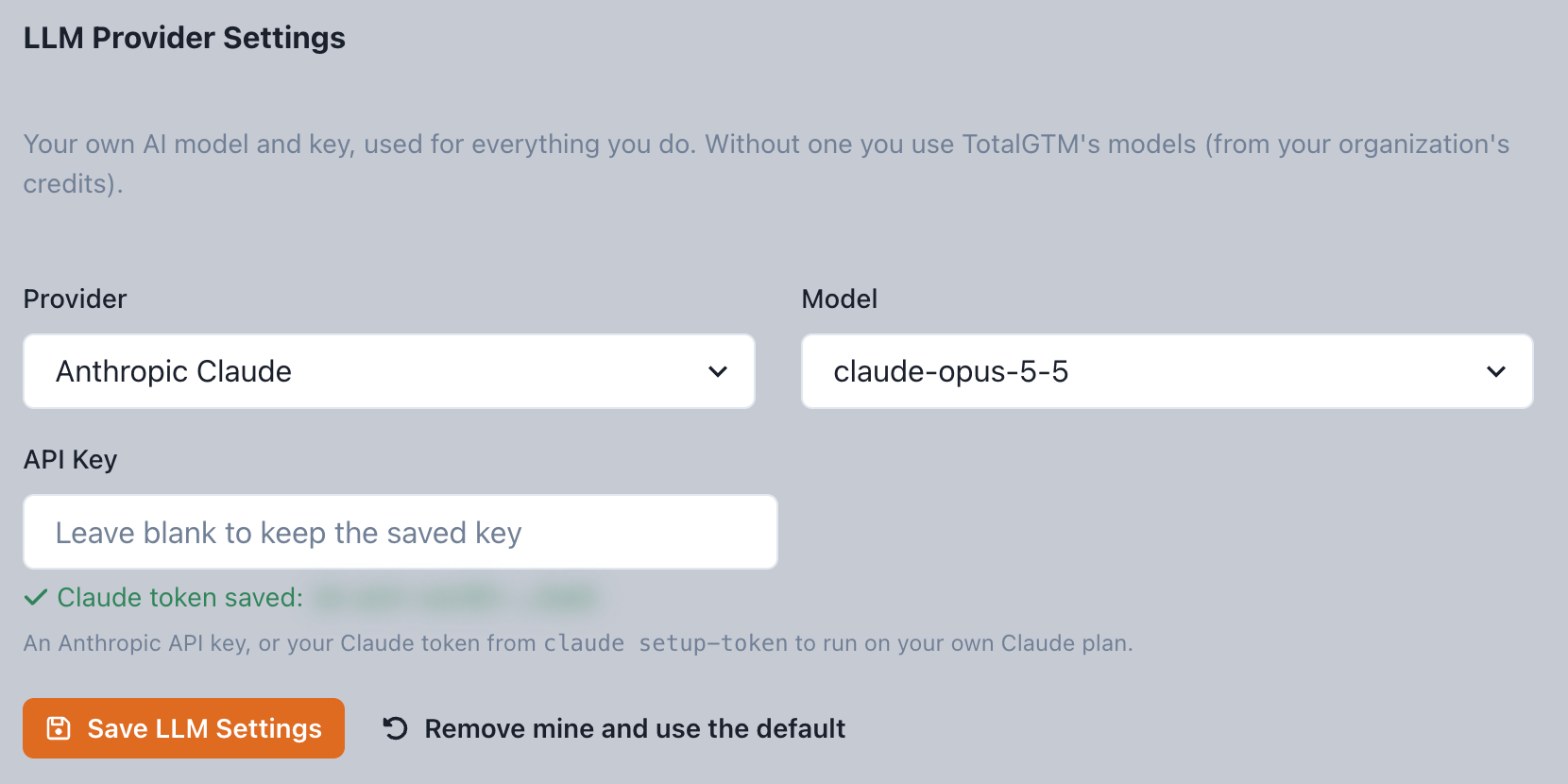
Set one for the whole organization
An admin can do the same for everyone. Open Organization, go to the AI models tab and fill in Organization’s AI model. Everyone in the organization uses it unless they’ve set their own key.
If your organization should only ever run on its own models, turn off Allow TotalGTM’s models (drawn from credits). Work with no model to run on then stops and tells the person to ask you, instead of quietly drawing credits.
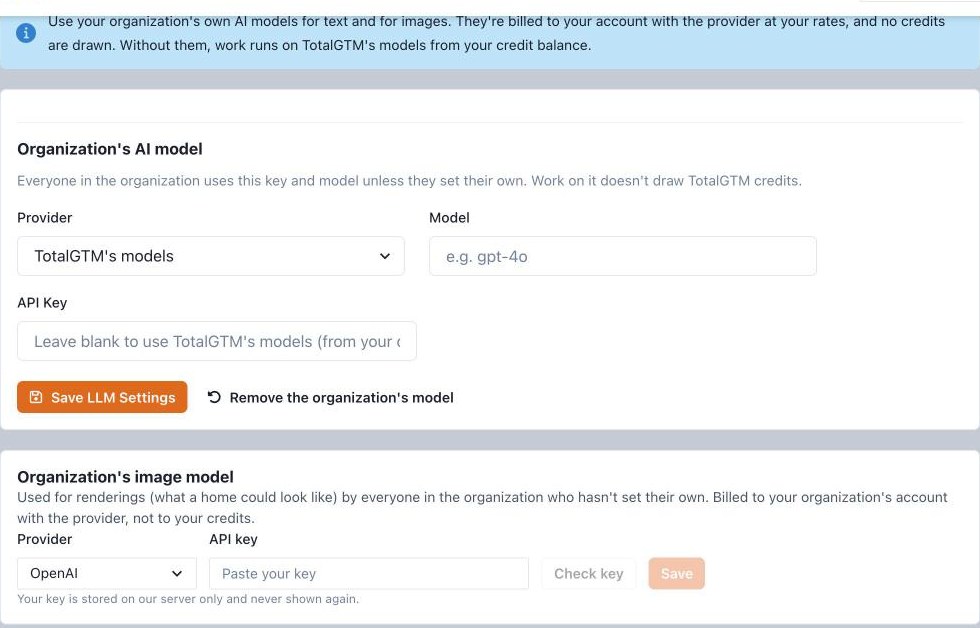
The same tab holds Contact data, where your organization connects its own Hunter account to find work email addresses at any company. Same idea: your account, your bill.
Images too
If you use TotalGTM for home services, renderings of what a home could look like run on an image model. That can be your own as well, for yourself under Image model on your profile, or for everyone under Organization’s image model. The image providers are OpenAI, Google Gemini and xAI Grok. Your own key or your organization’s is billed by the provider, not to your credits. Without either, renderings use TotalGTM’s image model from your organization’s credits.
Set limits and see where it goes
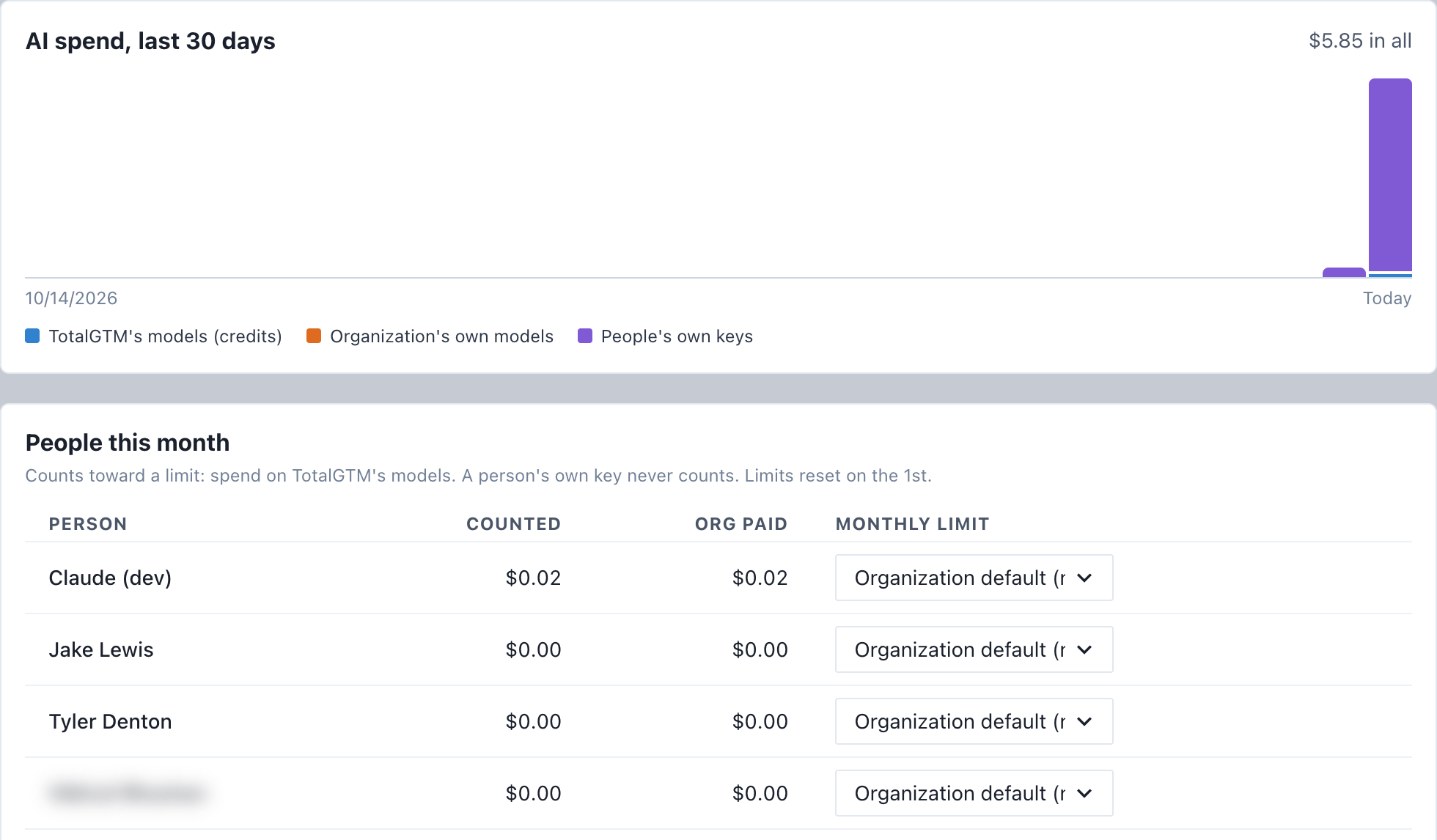
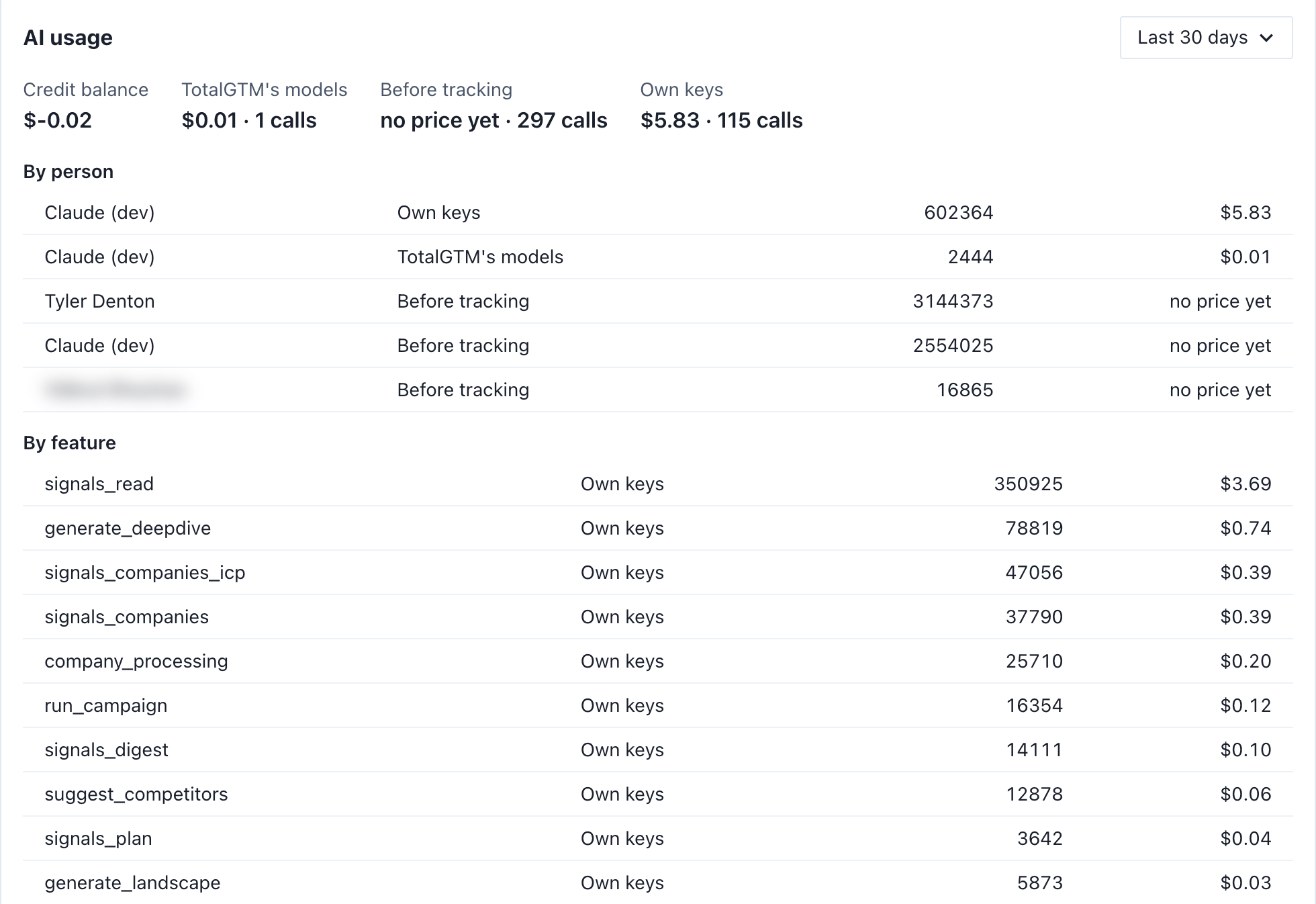
Admins get a clear view on the Billing & usage tab:
- AI spend, last 30 days: a bar per day, split by who paid: TotalGTM’s models, the organization’s own models, or people’s own keys.
- People this month: what each person has spent against their limit.
- AI usage: spend by person, by feature and by model, over the last 7, 30 or 90 days. Work on your own keys is included, so you can see what it costs even though it doesn’t draw credits.
Under Limits, set a Monthly AI limit per person, or give one person their own limit or none. People see a warning at 80%. At the limit their AI work stops until the 1st, or until you raise it. You choose what counts toward a limit: spend on TotalGTM’s models, on the organization’s models, or both. A person’s own key never counts, because it’s their money.
Each person can see their own number under Your AI spend this month on their profile.
Your key and your organization’s work stay inside your organization. Here’s how TotalGTM keeps each organization’s data apart.
Get started
- For yourself: open User Profile → LLM Provider Settings, pick a provider, paste your key and save.
- For your organization: an admin opens Organization → AI models and sets the Organization’s AI model.
- Optional: set an image model the same way.
- Admins: open Billing & usage to set monthly limits and watch usage.
Frequently asked questions
Can I use my own OpenAI, Claude or Gemini key in TotalGTM?
Yes. Open User Profile, find LLM Provider Settings, pick your provider, paste your key and pick a model. Your key is then used for everything you do.
Is TotalGTM free if I use my own AI key?
No. Your TotalGTM plan still applies. What your own key changes is the AI usage: it's billed by your provider to your account, and it draws no TotalGTM credits.
How much do TotalGTM's own AI models cost?
When neither you nor your organization has a key set, work runs on TotalGTM's models and draws from your organization's credits. Credits are what it costs to use TotalGTM's models, charged per use, and you can see the spend on the Billing & usage tab.
Can an admin stop people from using TotalGTM's models?
Yes. An org admin can turn off Allow TotalGTM's models (drawn from credits). Work with no model of its own then stops and says so, instead of drawing credits.
Which key is used if both I and my organization have one?
Yours. A person's own key always wins over the organization's model.
Keep reading
- Before and After Postcards From a Photo of Their Home
Make before and after postcards from a photo of the homeowner's own house. Roofing direct mail you print or send yourself, each picture labeled an illustration.
- How to Find Homes With Pools From Aerial Imagery
Find homes with pools from aerial imagery, one lot at a time. The import agent checks each lot for a pool or a dock and tells you when the picture was taken.
- A Mobile Sales App to Work Your Leads One at a Time
A mobile sales app for B2B reps: pick a list, read a short brief before you call, ask about the person, get a draft in your voice, and tap what happened.