A Mobile Sales App to Work Your Leads One at a Time
A mobile sales app for B2B reps: pick a list, read a short brief before you call, ask about the person, get a draft in your voice, and tap what happened.
The best time to reach someone is often when you’re away from your desk. Between meetings. In the car before a call. Walking the floor at a conference.
That’s also when your research is hardest to get to. The fit score is in one tab, the company deep dive is in another, and your notes from last week are somewhere else. So you call cold, or you don’t call at all.
TotalGTM now has a mobile sales app made for this. It shows one person at a time, with what you need to know about them, and when you’re done it asks one question: what happened?
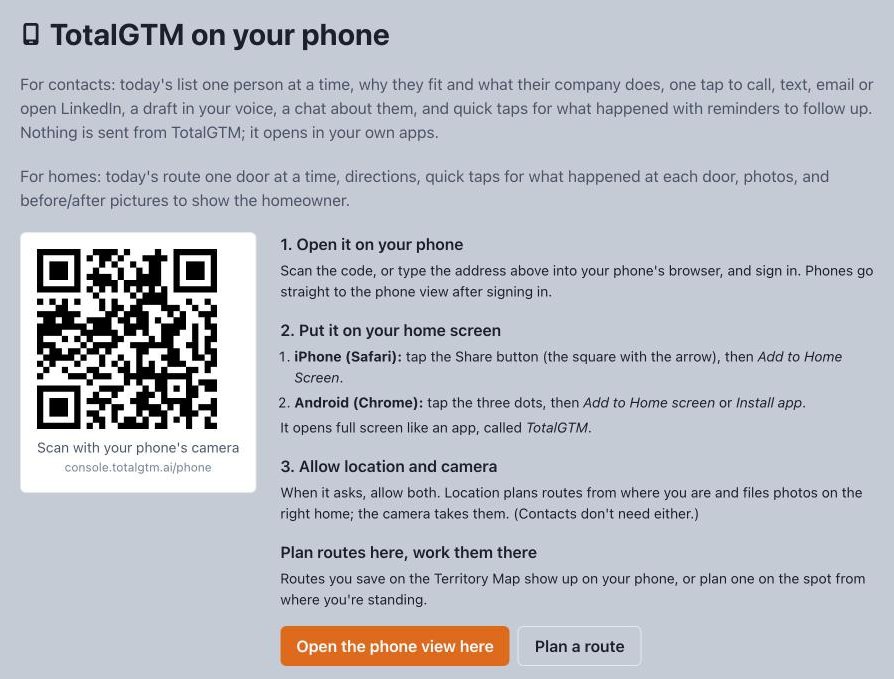
Put the mobile sales app on your home screen
In the console, open Phone app in the sidebar. You’ll see a QR code.
- Scan it with your phone’s camera and sign in.
- On iPhone, tap Share, then Add to Home Screen. On Android, tap the three dots, then Add to Home screen or Install app.
There’s nothing to download from an app store. It’s a web app, and phones let you install a web app from the browser’s menu. It opens full screen, like an app, and it’s called TotalGTM. If you sign in on a phone, you go straight to the phone view.
Work your sales leads from your phone
Under Work a list you’ll see:
- Due today: the follow-ups you set for today or earlier.
- Best fit, not reached yet: strong and moderate fits nobody has worked, best first.
- Your conferences: the contacts you met at each event.
- Your tags: any tag you use on contacts.
Or type in the box to look someone up by name, company or title.
You can also start from research. Tap Deep dives or Landscapes to read your company research as plain sections and tables, sized for a phone. If you haven’t used them yet, read what an opportunity landscape shows you. Each company shows how many of your contacts work there, and one tap gives you a list of just them.
Sales call prep in the minute before you dial
Open a list and you get one person at a time. Tap Skip to move on to the next person, or Back to return to the last one.
The card shows:
- Why they fit, against the ideal customer profile they matched best.
- What their company does, from your research.
- Your team knows: anything your team has added about them.
- Last touch and Notes, so you don’t repeat yourself.
- Any follow-up that’s due.
Tap More about them for their full profile, your company research, every touch and every draft.
Call, Text, Email and LinkedIn buttons open your own phone, messages, mail app and LinkedIn.
Ask about them
Tap Ask about and the person’s name. Ask what you’d ask a colleague who knows the account:
- “What should I open with?”
- “What does their company care about?”
- “Likely objections?”
- “Write me a 2-line voicemail.”
Answers come only from what you know about them: their profile, why they fit, your research on their company, past touches, notes and drafts. If the record doesn’t say, it tells you it doesn’t know. It won’t invent facts about the person.
Get a draft in your voice
Tap Write it and choose Email, LinkedIn or Call opener. Add a hint if you like, such as “mention we met at re:Invent.”
The draft follows the writing style you saved for that channel. A call opener gives you what to say in the first 20 seconds, two questions to ask, and how to handle “send me an email.”
When it’s right, Open in Mail puts it in your own mail app, ready to send. For LinkedIn, Copy, open LinkedIn copies it and opens their profile. You send it yourself. If you’d rather run email from your desk, you can also send sequence emails from your own Gmail.
Tap what happened
After you reach out, tap one:
- No answer
- Left voicemail
- Emailed
- LinkedIn message
- Talked
- Meeting booked
- Not interested
Add a note if you want. You can say it with your keyboard’s microphone. Then pick a reminder: tomorrow, in 3 days, a week, 2 weeks or a month. It shows up under Due today when the time comes.
Their status moves forward on its own, and it never moves backwards. A meeting stays a meeting even if you leave a voicemail later. You can also set the status yourself: New, Contacted, Meeting, Customer, Not interested or Skip.
TotalGTM doesn’t send anything
The phone view only suggests. It never sends an email, a message or a text for you. Every draft opens in your own apps, and you decide whether it goes.
Your statuses, notes and touches are shared only with the groups you share those contacts with. That way a team working the same accounts sees who’s already been reached. Nobody outside your organization sees them. We explain how that works in how TotalGTM keeps your sales data separate.
Sell to homeowners instead? The door-to-door canvassing app works the same way, one door at a time.
Get started
- In the console, open Phone app in the sidebar.
- Scan the code and sign in on your phone.
- Add it to your home screen.
- Open Due today or Best fit, not reached yet and work your first person.
Frequently asked questions
Does TotalGTM have a mobile sales app?
Yes. TotalGTM has a phone view you open from the console's Phone app page and add to your home screen. It opens full screen, like an app, and shows one contact at a time.
Can I prep for a sales call from my phone?
Yes. Each contact card shows why they fit your ideal customer profile, what their company does, what your team knows, your last touch and your notes. You can also ask questions about the person, and answers come only from what you already have on them.
Does the app send emails or messages for me?
No. It writes drafts, but every draft opens in your own mail app, messages or LinkedIn, and you decide whether it goes.
How do I log a call from my phone?
After you reach out, tap what happened, such as No answer, Left voicemail, Talked or Meeting booked. Add a note and a reminder if you want. The contact's status moves forward on its own and never moves backwards.
Does my team see my notes and call outcomes?
Your statuses, notes and touches are shared only with the groups you share those contacts with, so a team working the same accounts sees who has been reached.
Keep reading
- Before and After Postcards From a Photo of Their Home
Make before and after postcards from a photo of the homeowner's own house. Roofing direct mail you print or send yourself, each picture labeled an illustration.
- How to Find Homes With Pools From Aerial Imagery
Find homes with pools from aerial imagery, one lot at a time. The import agent checks each lot for a pool or a dock and tells you when the picture was taken.
- Bring Your Own AI Key for Sales Prospecting
Bring your own AI key from OpenAI, Claude, Gemini and more. Your provider bills the AI usage directly, and no credits are used. See who pays, limits and usage by person.