A Door to Door Canvassing App Built for Roofers
A door to door canvassing app for roofers: plan a storm route from where you stand, get a brief on every home, log each knock and file photos on the right home.
Planning a good route is half the job. The other half happens on the sidewalk, with a phone in one hand and a clipboard you left in the truck. A door to door canvassing app should help with both halves.
That’s where things get lost:
- The note you meant to write after the third door.
- The “come back Thursday” that never made it into anyone’s calendar.
- The photo of the roof that’s now somewhere in your camera roll with 400 others.
TotalGTM’s phone app is a door to door canvassing app built for that half. It shows you one door at a time, tells you what you need to know before you knock, and keeps a record of what happened, so the next person on your team doesn’t knock the same door cold.
Get it on your phone
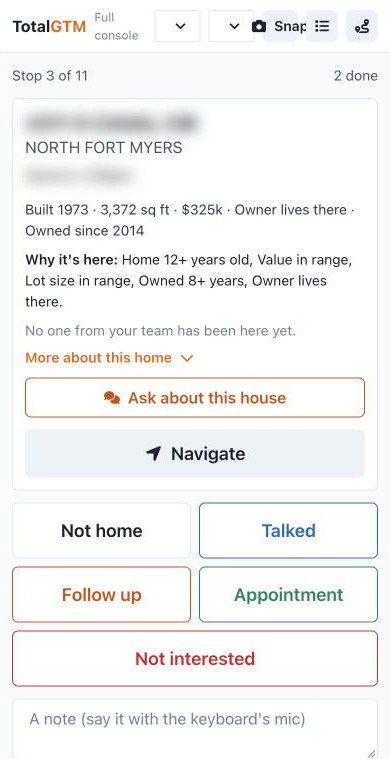
In the console, open Phone app in the sidebar. You’ll see a QR code.
- Scan it with your phone’s camera and sign in.
- Add it to your home screen. On an iPhone, tap Share, then Add to Home Screen. On Android, tap the three dots, then Add to Home screen or Install app.
- Allow location and camera when it asks.
It opens full screen, like any other app on your phone.
Plan a storm canvassing route
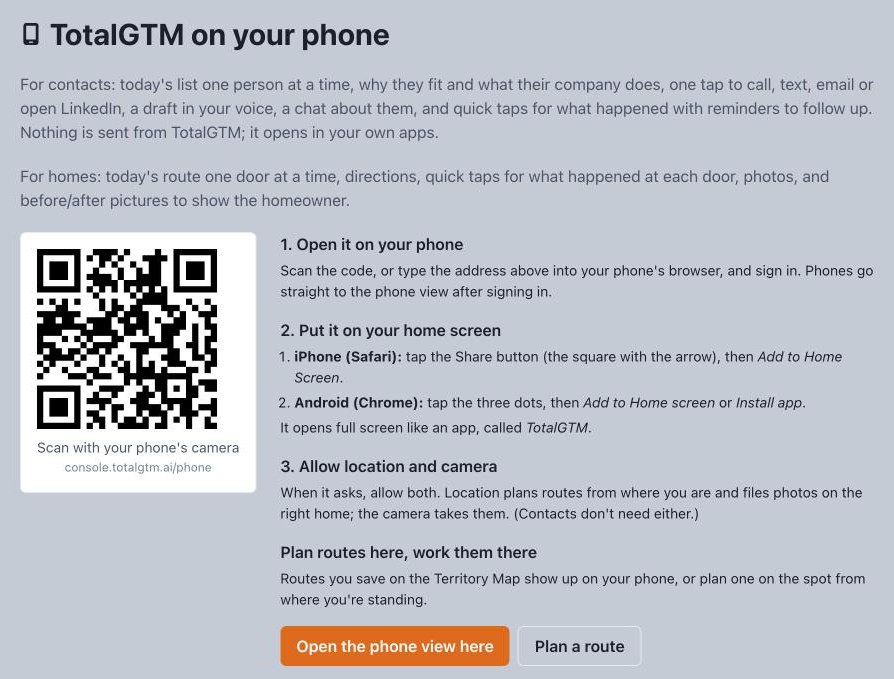
Tap the Routes button in the header. You have two choices.
Open a saved route. Routes you or your team planned on the Territory Map show up here, with how many stops each one has.
Plan from here. Pick a saved search, say how many doors and how far, then tap Plan my route. TotalGTM uses where you’re standing, picks the best-fit homes nearby that nobody on your team has worked yet, and puts them in driving order. The route is saved, so you can switch away and come back to it.
After a storm, make the saved search do the work. Filter for homes within a few miles of hail of an inch and a half or more since a date you pick. The storm reports come from the NOAA Storm Prediction Center’s daily storm reports, and TotalGTM keeps a year of them. Then plan from where you’re parked.
New to home services in TotalGTM? Read how home services mode finds the right homes first.
One door at a time, with a brief
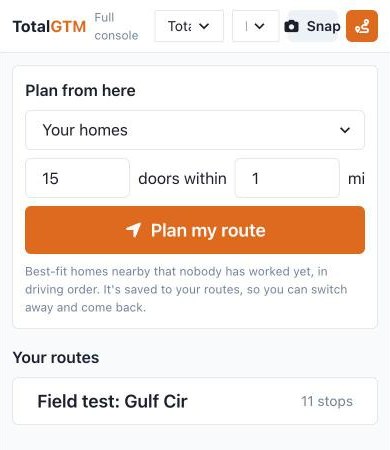
Each stop shows the street, the city and the household. Tap Navigate and it opens directions in your phone’s maps app.
Under the address is a short brief:
- The house: a line about the home itself.
- Why it’s here: the reasons it fit your search or your ideal customer.
- Last time: what happened the last time anyone from your team was here, and their note.
- Notes your team has left on the home.
Tap More about this home for the rest:
- What your own data says about it.
- Storms nearby, with dates and distance.
- Every visit.
- Any outreach drafts already written, like a postcard or a door script.
The owner’s phone and email, if your company looks them up
Your company can connect its own skip-tracing account, such as Tracerfy. Then the brief has an Owner contact section. Tap Find owner contact and the lookup runs on your company’s account, which charges it when someone is found. TotalGTM doesn’t supply homeowner phone numbers or emails itself.
What comes back is kept on your organization’s record of that home, for your team only. Before any number gets a Call or Text button, it’s checked:
- Your do-not-contact list. Anything on your organization’s list is blocked, always. Tap Do not contact at the door when someone asks you not to call.
- The Do Not Call registry and known litigators. Those numbers are held back unless your company recorded consent or an existing relationship for that home.
- How old the check is. A Do Not Call check older than 31 days needs a fresh lookup before the number is offered. That matches the FTC’s rule that sellers check the registry at least every 31 days.
It’s guidance, not legal advice, and it errs toward blocking. Emails on your do-not-contact list or unsubscribed are held back the same way.
Ask before you knock
Not sure how to open? Tap Ask about this house. It answers from what you know about the home: the county record, your data, visits, notes and drafts.
Log what happened
Five buttons: Not home, Talked, Follow up, Appointment and Not interested.
The buttons show where the door stands. Tap one and it stays pressed. Tapped the wrong one? Tap it again to take it back. Appointment and Follow up ask when, so the time is saved with the visit.
There’s a note box under the buttons. Use the microphone on your phone’s keyboard if your hands are full. You can edit your own visits later to fix a note or a time.
When you’re done, tap Skip to go to the next door, or the list button to see every stop and what happened at each.
Photos that file themselves
Tap Photo on a stop to take a picture with the camera, or the gallery button to add ones you already took. They’re filed on that home.
The Snap button in the header works anywhere. It files the photo on the home you’re standing at.
Once a home has a photo, Show them makes a picture of what it could look like after the work, to show the homeowner at the door. Every one is labeled as an illustration. The same pictures can go on before and after postcards you print and mail yourself.
Routes are worked by the whole team
Share your homes with a group and your routes go with them. Everyone in the group can open the route on their phone. When a teammate logs a visit, you see it at that stop.
Anyone the route is shared with can add a home to it from the home’s page, and it’s slotted into driving order. Only the person who made the route can delete it.
That’s how a manager can plan the week’s routes on the Territory Map and hand them to the field reps.
You stay in charge
TotalGTM plans the route and keeps the record. It never knocks, mails, calls or texts for you. You decide which doors to knock, who to call and what to say.
Get started
- In the console, open Phone app in the sidebar and scan the code.
- Add it to your home screen and allow location and camera.
- Tap Routes, then open a saved route or tap Plan my route.
- Work the first door, and tap what happened.
Working contacts instead of doors? See the mobile sales app for working your leads.
Frequently asked questions
Can a canvassing app plan my route after a hail storm?
Yes. Save a search for homes near recent hail or wind reports, then tap Plan my route on your phone. TotalGTM picks the best-fit homes near you that your team hasn't worked yet and puts them in driving order.
Can I see the homeowner's phone number before I knock?
Only if your company connects its own skip-tracing account, such as Tracerfy. The lookup is charged to that account, numbers on the Do Not Call registry or flagged as litigators are held back, and anything on your do-not-contact list is blocked.
Does TotalGTM call, text or knock for me?
No. It plans the route, writes the brief and keeps the record. You decide which doors to knock, who to call and what to say.
Can my whole crew work the same route?
Yes. Share your homes with a group and the routes go with them. When a teammate logs a visit, everyone sees it at that stop.
Do I need to download anything from an app store?
No. Scan the QR code on the Phone app page in the console, sign in, and add it to your home screen. It opens full screen like any other app.
Keep reading
- Set Up an AI SDR in Minutes, With a 30-Day Free Trial
Sign up for TotalGTM, the AI SDR that researches accounts and drafts outreach. Every setup step, from your free trial and AI key to your first landscape.
- How to Find Work Email Addresses at Any Company
Find work email addresses at any company with your own Hunter account: names, titles, verified emails and LinkedIn links, added to your contacts in one click.
- Turn a LinkedIn Search Into a Prospect List
Build a LinkedIn prospect list in TotalGTM: the Chrome extension saves the people you're looking at, in your own browser, and you pick who goes into Contacts.