How to Find Work Email Addresses at Any Company
Find work email addresses at any company with your own Hunter account: names, titles, verified emails and LinkedIn links, added to your contacts in one click.
You know which company you want to sell to. What you don’t know is who to write to, or how to reach them. So you guess at a title on LinkedIn, guess at an email format, and hope it doesn’t bounce.
Now you can find work email addresses instead of guessing. Type a company’s website into TotalGTM and see the people who work there, their titles, their work emails and their LinkedIn profiles. Pick the ones you want, and they’re in your contacts.
This runs on your own Hunter account. TotalGTM never supplies or resells contact data: you always bring your own key, and Hunter bills that account at your plan’s rates. No TotalGTM credits are used.
Connect Hunter (admins, once)
An admin of your organization sets up the Hunter integration once for everyone:
- Open Organization and go to the AI models tab.
- Find Contact data.
- Paste your Hunter API key. You’ll find it in Hunter under API keys.
- Click Connect.
TotalGTM checks the key with Hunter before saving it, so a typo shows up right away rather than in the middle of someone’s search.
Once it’s connected, the card shows which Hunter account and plan it is, how many credits are left and when they reset, and how many credits your organization used in the last 30 days. You can disconnect it from the same card.
Or use your own Hunter key
Have your own Hunter account? Open User Profile and find Your own contact data. Paste your key there. From then on your searches run on your key instead of your organization’s, and Hunter bills you. Remove it and you’re back on your organization’s account.
It works the same way as bringing your own AI key: yours first, then your organization’s.
Find people at a company
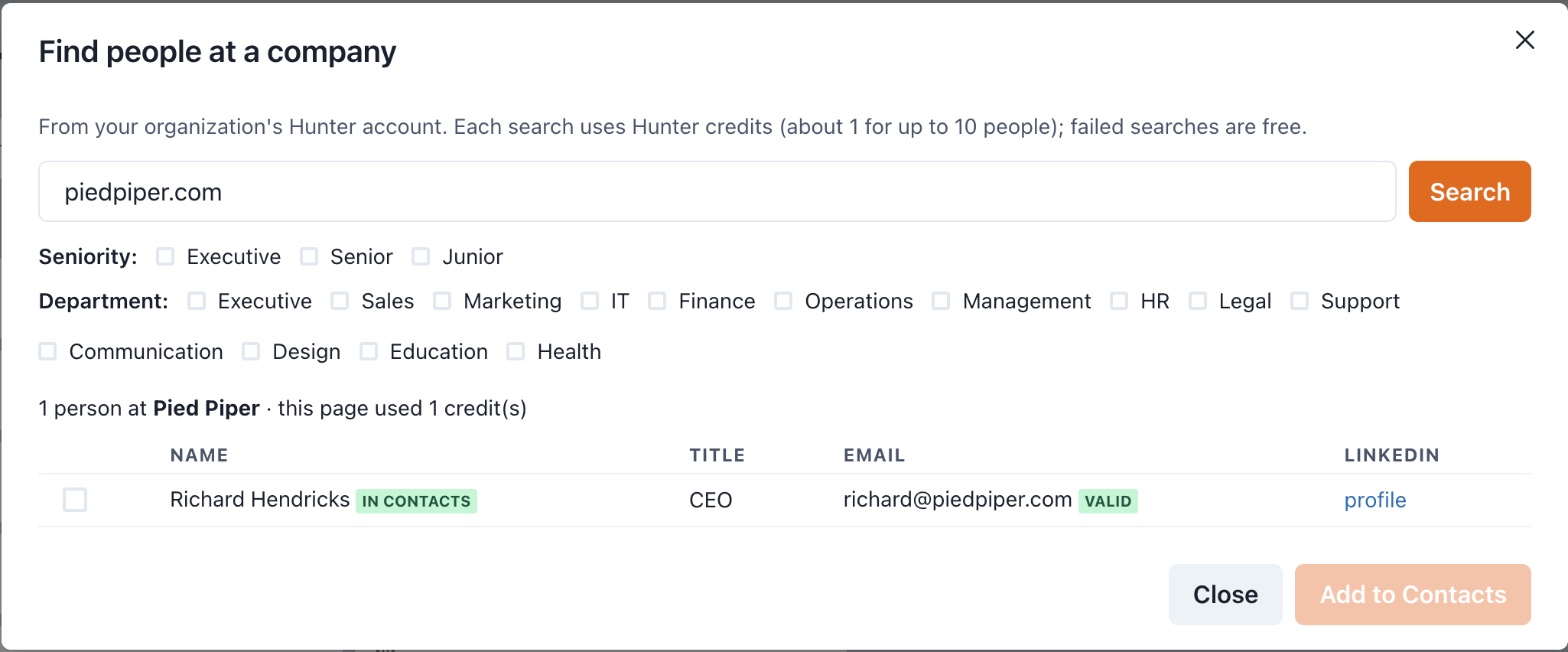
Open Contact Profiles and click Find people.
- Type the company’s website, like
acme.com, and click Search. - Narrow it down if you like. Pick a Seniority (Executive, Senior, Junior) and one or more Departments, such as Sales, Marketing, IT, Finance or Operations.
- Read the list: name, title, work email, and a link to their LinkedIn profile when Hunter has one.
Each email shows its verification status from Hunter, so you can see which addresses are confirmed before you write to anyone. Results are people’s own work addresses, not shared inboxes like info@. Hunter describes these searches in its API documentation.
Add the ones you want, without duplicates
People who are already in your contacts are marked in Contacts. New people are ticked for you; untick anyone you don’t want. Then click Add to Contacts.
If someone you add is already a contact, TotalGTM fills in what’s missing instead of creating a second copy. An email or title you already had stays as it is. You’ll see how many were added and how many existing contacts were updated.
Find one missing work email address
Already have a contact with no email address? Open them in Contact Profiles and click Find email. TotalGTM asks Hunter using their first and last name and their company’s website, and saves the email on the contact when it’s found.
If Hunter doesn’t find one, you’ll be told, and no credit is used.
What it costs
Hunter charges the Hunter account whose key was used, not TotalGTM:
- A search uses about one Hunter credit per page of up to 10 people. The dialog shows what each page used.
- Moving to the next page is another search. The button says Next (uses credits) so nobody spends them by accident.
- Searches that find nobody, and email lookups that come back empty, are free.
Admins can see the organization’s 30-day total on the Contact data card.
What to do next
Once you have the right people, write to them. You can send sales emails from your own Gmail straight from a sequence, and every one carries an unsubscribe link.
Get started
- An admin opens Organization → AI models → Contact data and connects your Hunter API key. Or add your own key on your profile.
- Open Contact Profiles and click Find people.
- Enter a company website and pick any filters.
- Tick the people you want and click Add to Contacts.
- For a contact with no email, open them and click Find email.
Frequently asked questions
Does TotalGTM sell contact data?
No. TotalGTM never supplies or resells contact data. You bring your own Hunter key, and Hunter bills that account at your plan's rates.
Can I use my own Hunter key instead of my organization's?
Yes. Add your own key under Your own contact data on your profile and it's used instead of your organization's. Remove it and you're back on your organization's account.
How many Hunter credits does a search use?
About one credit per page of up to 10 people. Searches that find nobody, and email lookups that come back empty, don't use a credit.
Will adding people create duplicate contacts?
No. People already in your contacts are marked in Contacts, and if you add one anyway TotalGTM fills in what's missing instead of making a second copy.
Keep reading
- Set Up an AI SDR in Minutes, With a 30-Day Free Trial
Sign up for TotalGTM, the AI SDR that researches accounts and drafts outreach. Every setup step, from your free trial and AI key to your first landscape.
- A Door to Door Canvassing App Built for Roofers
A door to door canvassing app for roofers: plan a storm route from where you stand, get a brief on every home, log each knock and file photos on the right home.
- Turn a LinkedIn Search Into a Prospect List
Build a LinkedIn prospect list in TotalGTM: the Chrome extension saves the people you're looking at, in your own browser, and you pick who goes into Contacts.