Turn a LinkedIn Search Into a Prospect List
Build a LinkedIn prospect list in TotalGTM: the Chrome extension saves the people you're looking at, in your own browser, and you pick who goes into Contacts.
You’ve built the right people search on LinkedIn: the right titles, the right region, the right company size. Now you want those people somewhere you can work them, without copying names one at a time.
The TotalGTM Chrome extension turns that search into a LinkedIn prospect list. It saves the people you’re looking at to TotalGTM, in your own browser. Then you choose who goes into Contacts, and TotalGTM helps you research them and write to them.
Your browser, your LinkedIn, your pace
The extension doesn’t run on our servers or sign in to LinkedIn for you. It works in a LinkedIn tab in your own Chrome, signed in as you, and moves through your search at an unhurried pace.
You’re using your own LinkedIn account, so how you use it is up to you. Read LinkedIn’s User Agreement, and save the people you actually plan to reach out to.
Install the Chrome extension
Your User Profile in TotalGTM has the install link. Log in to TotalGTM in the same browser first; the extension uses that session, so there’s no separate login.
Build a LinkedIn prospect list from a people search
From LinkedIn. Run a people search and set your filters. The extension adds a Harvest these results → TotalGTM button to the page. Click it and give the list a name, like “QA leaders, Bay Area”.
From TotalGTM. Open LinkedIn Lists, click to start a new one, paste the URL of your LinkedIn search, give it a Name, and click Start in LinkedIn. A LinkedIn tab opens and the extension takes it from there.
One person at a time. On anyone’s profile, click Save to TotalGTM to save their full profile: about, experience, education and skills.
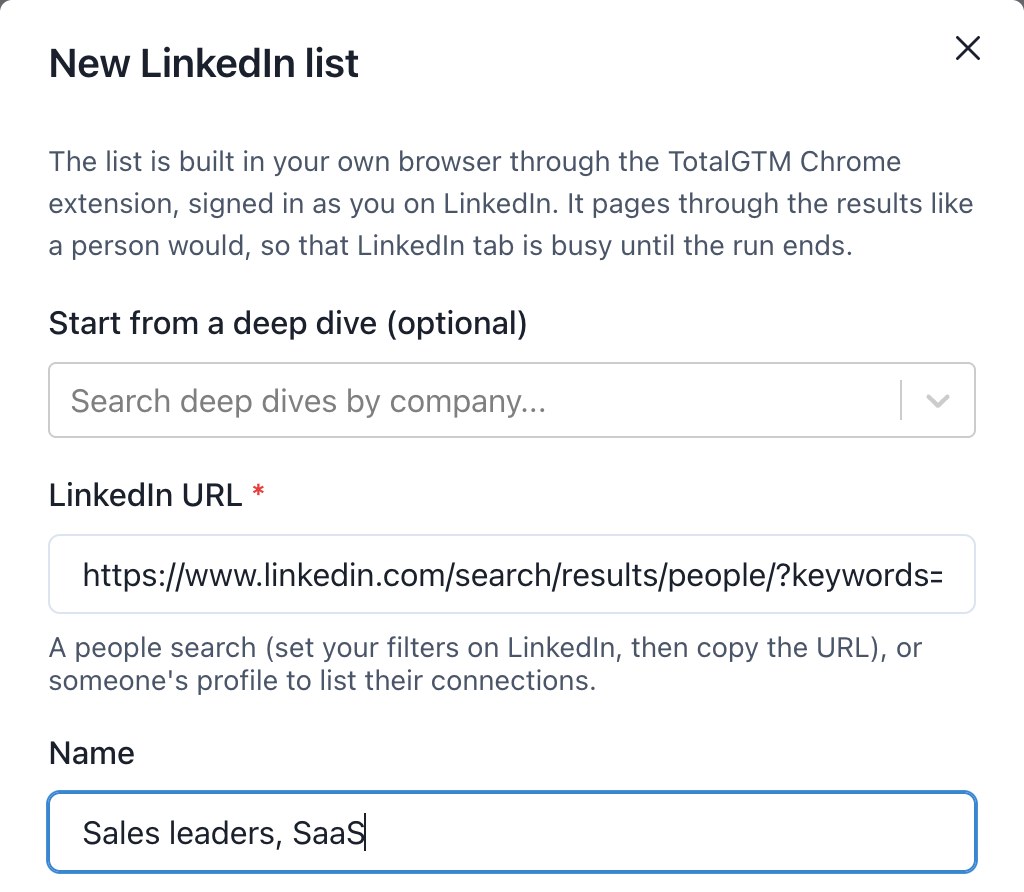
For each person in a search, TotalGTM keeps their name, headline, location and LinkedIn’s summary line. You can pause and resume from the LinkedIn tab, or stop from TotalGTM, and everything saved so far is kept. If LinkedIn asks you to sign in or verify, it waits for you.
Pick who goes into Contacts
Open the list in LinkedIn Lists and the people show up in a table. Narrow it down by Role, Company or Keyword, then click Add to Contacts.
- No duplicates. People are matched to your contacts by their LinkedIn profile first. Anyone who’s already a contact is updated, not copied.
- Tagged. Everyone added is tagged with the list’s name, like
list: QA leaders Bay Area, so you can find the batch later. - Scored, if you want. Leave score leads ticked and each person is scored against your ideal customer profiles.
Find the right people at one company
Researching one account? From a company deep dive, Find people on LinkedIn looks at that company for the job titles the deep dive says matter. TotalGTM shows Recommended people for each title, and you add the ones you want.
You can also ask Claude to do it. With the TotalGTM connector for Claude, Claude can start a list from a LinkedIn search and add the right people to Contacts. It still runs in your Chrome extension, in your browser.
What to do next
People come in with a LinkedIn profile, not an email. Find their work email address, then send from your own Gmail. On the road, work the list from your phone, one person at a time.
Get started
- Install the TotalGTM Chrome extension from your User Profile and log in to TotalGTM in the same browser.
- Run a people search on LinkedIn and set your filters.
- Click Harvest these results → TotalGTM, or paste the search into LinkedIn Lists and click Start in LinkedIn.
- Filter the people and click Add to Contacts.
Frequently asked questions
How do I turn a LinkedIn search into a prospect list?
Install the TotalGTM Chrome extension, run your people search on LinkedIn, and save the people you're looking at to TotalGTM. Then filter them and add the ones you want to Contacts.
Does it log in to LinkedIn for me?
No. It runs in your own Chrome, in your own LinkedIn tab, signed in as you, at your pace. TotalGTM never signs in to LinkedIn on your behalf.
What gets saved for each person?
Their name, headline, location and LinkedIn's summary line, and on some accounts a few recent jobs and schools. You can also save a person's full profile from their profile page.
Will saving people create duplicate contacts?
No. TotalGTM matches people to your existing contacts by their LinkedIn profile first, so anyone who's already a contact is updated instead of copied.
Is this allowed by LinkedIn?
You're using your own LinkedIn account, so that's between you and LinkedIn. Read LinkedIn's User Agreement, and save the people you actually plan to reach out to.
Keep reading
- Set Up an AI SDR in Minutes, With a 30-Day Free Trial
Sign up for TotalGTM, the AI SDR that researches accounts and drafts outreach. Every setup step, from your free trial and AI key to your first landscape.
- How to Find Work Email Addresses at Any Company
Find work email addresses at any company with your own Hunter account: names, titles, verified emails and LinkedIn links, added to your contacts in one click.
- A Door to Door Canvassing App Built for Roofers
A door to door canvassing app for roofers: plan a storm route from where you stand, get a brief on every home, log each knock and file photos on the right home.